EPC-QR for Gravity PDF · add-on for Gravity PDF

Your invoice, paid with a scan.

You want your customers to pay quickly and without mistakes. For this, EPC-QR for Gravity PDF appends a payment page with an EPC QR code to the invoice that Gravity PDF creates. This is a QR code for a SEPA credit transfer that banking apps can read. Payee, IBAN, amount and payment reference are already filled in, so your customer does not have to type anything. There are no transposed digits and no searching for the right account.

Gravity PDF is the extension that creates a PDF file from a completed Gravity Forms form. Your invoice itself stays unchanged.

1 · Open the invoice
with a payment page at the end
2 · Scan the code
with the banking app
3 · Confirm the transfer
everything already filled in
How your customer pays: open the invoice, scan the code and confirm the transfer, which is already filled in.

The payment page

An extra page at the end of the document.

Heading and short introduction

You set both per feed. A feed is a mapping that defines which PDF is created from which form. Both texts accept merge tags. A merge tag is a placeholder like {Name:1} that Gravity Forms replaces with the entered value. This way the text can mention, for example, the invoice number your document already uses.

The QR code

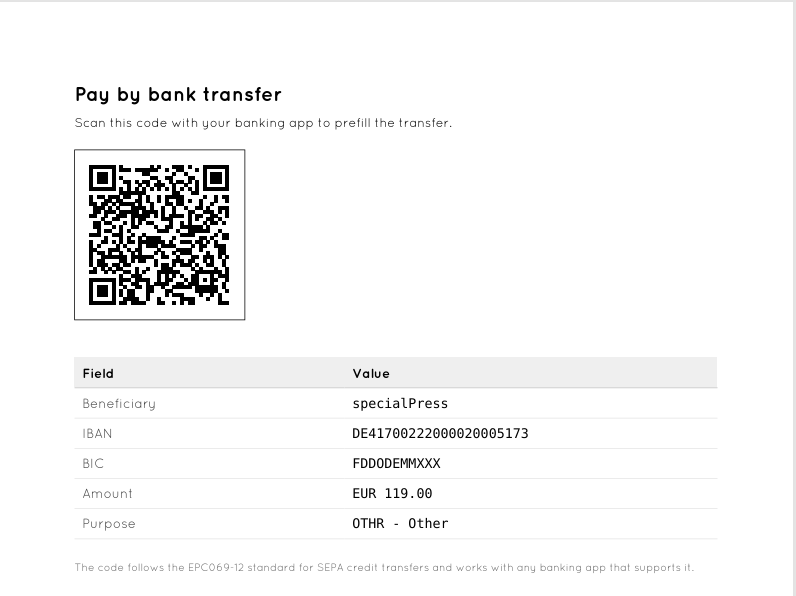
The code is 45 mm in size and uses error correction level M. It follows the EPC069-12 guideline for SEPA credit transfers and contains payee, IBAN, BIC, amount, payment reference and reference, which is exactly the content the standard prescribes.

A table of the values in the code

The payment page also shows a table. It is built from the data the code itself contains, not from the settings. So it never shows anything that is not in the code as well. With the table, customers without a banking app can make the payment too, and a wrong payee becomes visible instead of staying hidden in the dot pattern. The table can be switched off per feed.

Margins of its own

The payment page does not take over the indent of the invoice template. That is why it always looks the same, no matter which template it is attached to. Developers can adjust the margins through a filter.

The invoice your template creates stays unchanged. The code is added as an extra page at the end.


Where the values come from

Nothing for you to reconcile.

The amount comes from the entry

The code asks for the same total that Gravity Forms shows. There is no second field that anyone has to maintain, so the code can never ask for a different amount than the invoice shows. If a form has no pricing fields, the code contains an open amount, and the banking app asks the payer for it. That way your customer still gets a code in this case.

Invoice number and date through merge tags

Gravity PDF does not keep an invoice number of its own. Depending on the setup, it comes from a template, a form field or another add-on. So the add-on does not fix a single source; instead, the payment reference accepts merge tags. Write the placeholders your document already uses into it. This way you can reach any source.

Reference or text, decided per feed

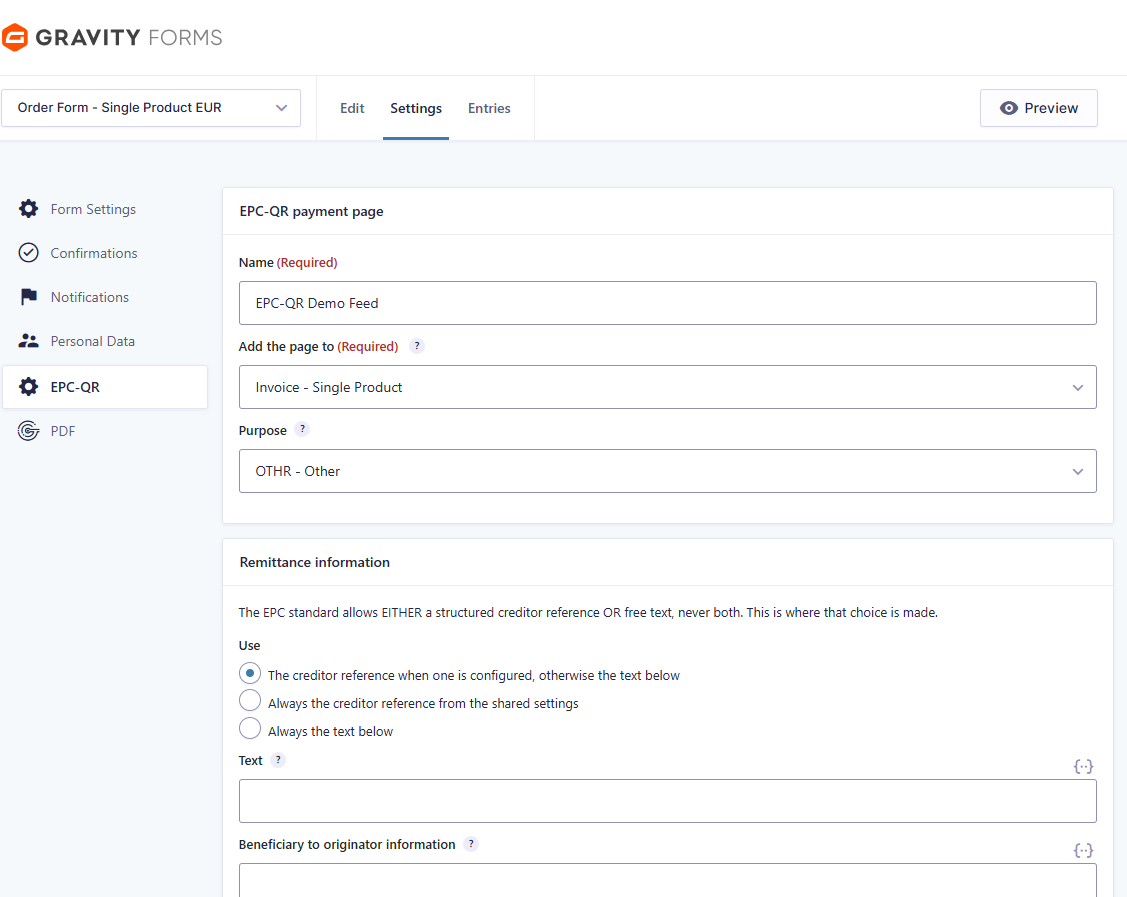
The EPC standard allows either a structured creditor reference or a free payment reference text, but not both at once. The feed therefore offers three options: the reference if one is stored, always the reference, or always the text.

Seven purpose codes

A purpose code tells the bank what kind of payment it is. The add-on offers seven purpose codes from the ISO 20022 standard, from supplier payments to tax payments.

One shared settings page

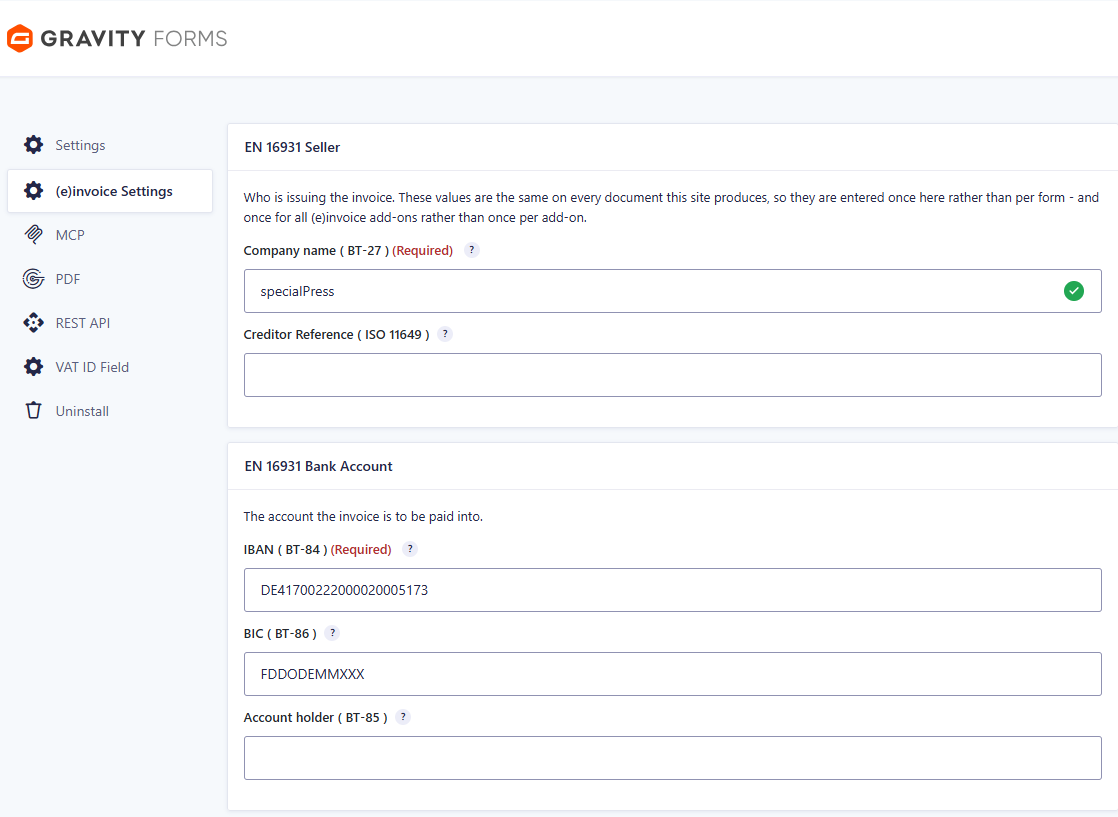
You store company name, IBAN, BIC and creditor reference once on the (e)invoice Settings page, and every add-on of the family reads them from there. You never type an IBAN twice, and there can never be two different IBANs.


Built not to break

Small errors don’t hold up your invoice.

A PDF is often created at a delicate moment, for example while a notification is being sent or a visitor is waiting for a download. That is why, if there is a small error, the add-on leaves out only the affected part: a faulty BIC costs only the BIC and not the whole code, and an unknown purpose code costs only the purpose. A payment reference longer than 140 characters is shortened. Each of these decisions is written to the log, so you can trace later what happened. This never turns a payable invoice into a failed document.

Identifiers are validated, not just stored

The add-on checks the IBAN check digits, the BIC structure including the country code according to ISO 3166-1, and the creditor reference check digits according to ISO 7064 (MOD 97-10). A typo is caught when you save and not only when a customer pays into the wrong account.

Checked before you configure anything

The feed screen tells you what is missing, such as a wrong currency, an inactive Gravity PDF, a form without a PDF, a company name not yet stored or a missing IBAN. The same checks run when the PDF is created and write a line to the log.

Nothing to install

The library for the data content of the code ships with the plugin, and Gravity PDF itself provides the QR encoder. There is no Composer step, no API key and no external service. The code is calculated on your own server, and the payment data does not leave it for this.

A PDF that was saved before the feed was added keeps its old content, because Gravity PDF reuses saved files. A switch rebuilds the PDF. It is off by default, so that nothing slows down in normal operation. German and English are included, and all texts are translatable.


Requirements

What has to be in place.

WordPress with Gravity Forms 2.5 or newer
Gravity PDF 6 or newer
PHP 8.1 or newer
Currency in Gravity Forms EUR

The currency requirement comes from the EPC QR standard, which only allows the euro. The plugin is a feed add-on for Gravity Forms and is therefore set up per form. If a form creates an invoice and a confirmation, the payment page can only be attached to the invoice.


Setup

Four steps, then it runs on its own.

1 · Your details
enter once
2 · Add a feed
on the form
3 · Reference or text
choose per feed
4 · Open the PDF
payment page at the end
Setup in four steps, from your details to the finished PDF with a payment page.

01   Enter your details once

You enter company name, IBAN and, if you have them, BIC and ISO 11649 creditor reference on the shared (e)invoice Settings page. You find this page under Forms → Settings. IBAN, BIC and creditor reference are validated when you save, so a typo is caught there and not only on the printed invoice.

02   Add a feed to the form

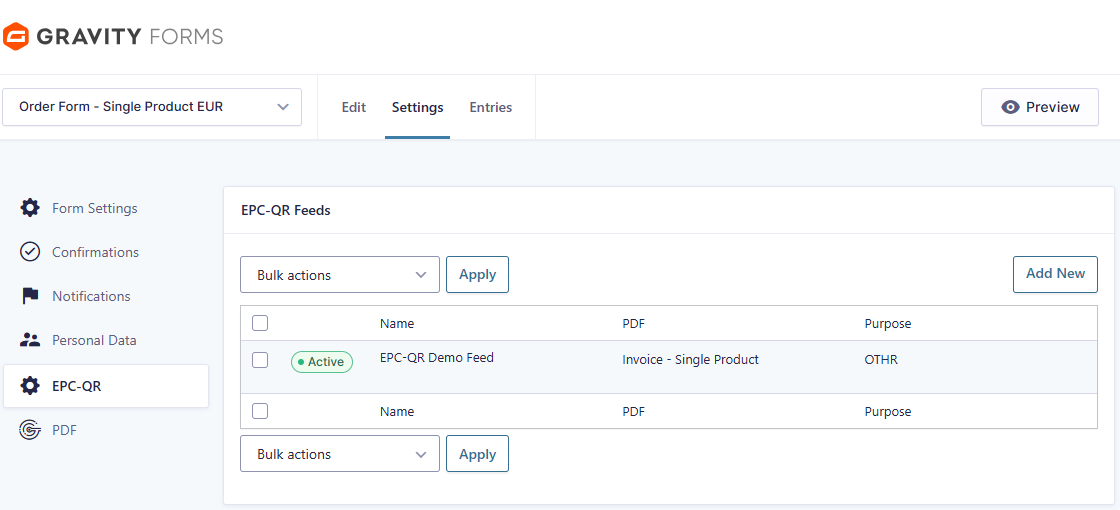
A feed decides which PDF of the form carries the payment page. If a form creates an invoice and a confirmation, the code belongs on the invoice only.

03   Choose reference or text

The EPC standard allows either a structured creditor reference or a free payment reference text, never both. The feed chooses automatically, but you can also force one of the two. Merge tags work in the text, so Invoice {Invoice Number:12} of {date_dmy}, for example, becomes the payment reference.

04   Open the PDF

The payment page is at the end of the document, and your template stays untouched.


Forms → Settings → (e)invoice Settings: here you enter the details once, and every add-on of the family reads them from there.

The list of EPC QR feeds of a form. There is one feed for each document that should carry the code.

The settings of a feed. They define which PDF carries the code, which ISO 20022 purpose code applies and whether the reference or the text is used.

The result is the appended payment page. The table is built from the QR code itself and can therefore never show a value that the code does not contain.


Manual

Everything to read up on.

The manual describes the installation, the first steps, every setting and special cases. It applies to version 1.1.7 of the plugin.


Goes well with

These extensions complement the add-on.

Swiss QR-bill

Swiss QR-Bill for Gravity PDF appends a complete Swiss QR-bill to the PDF, with a payment part and a receipt. It is the right add-on if you invoice with an account in Switzerland or Liechtenstein.

E-invoices from Gravity PDF

eInvoice Generator for Gravity PDF turns the invoice PDF that Gravity PDF already creates into an e-invoice according to EN 16931. An e-invoice is an invoice as a structured file that a program can read. The plugin is a paid product, available in the invoicePress.de shop.

SEPA fields

SEPA Fields for Gravity Forms brings three validated fields for bank details into Gravity Forms: IBAN, BIC (also called SWIFT code) and Creditor Reference according to ISO 11649.


See it first, then decide.

The demo will soon give you a real invoice PDF with a payment page that you can scan with your own banking app. EPC-QR for Gravity PDF is a paid product. You will find everything about getting it on the product page.